Follow the image-to-video setup
INSIDE CINEFUSE · IMAGE TO VIDEO
Make your first motion easy to follow.
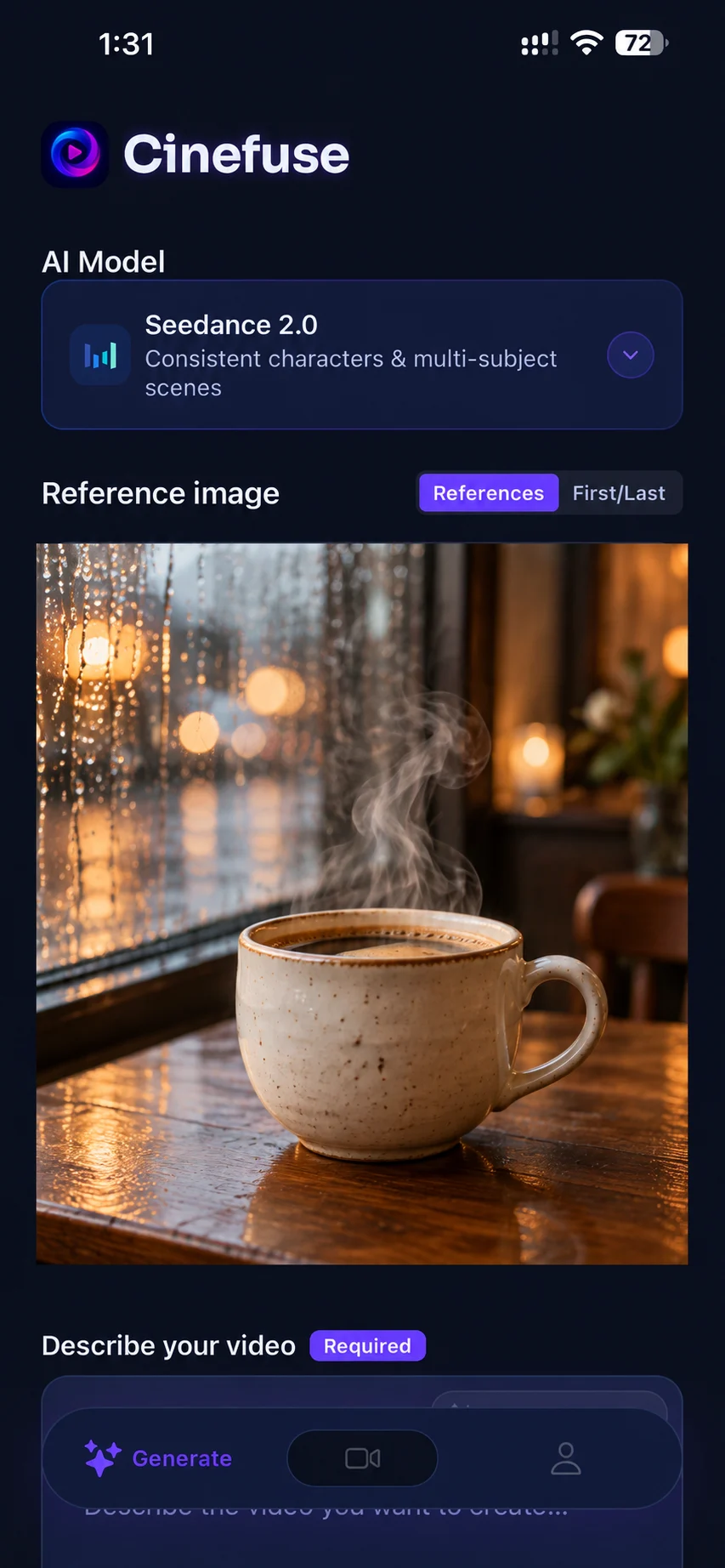
This illustrative setup uses a simple coffee photo with Seedance 2.0 selected. A single subject and gentle motion make your first result easier to assess.
Suggested motion prompt:
Keep the camera still. Let a thin curl of steam rise naturally from the coffee while rain softly trails down the window behind it.
Before you generate: Use a sharp source image with a clear cup silhouette. Review the selected model, output settings, and credit cost before generating.
Review the result: Check that the cup stays still and the steam moves naturally. If the image changes too much, ask for only subtle steam and keep the background static.
Illustrative app setup with an AI-generated reference image and a suggested prompt, not a recorded before-and-after result. AI motion can change source details.
What You Need
- An iPhone compatible with the current App Store listing
- A Cinefuse account (free to create)
- A paid Cinefuse subscription with enough credits for your chosen generation
- A Wi-Fi or cellular connection
- An idea for your first video
That's it. No camera, no lighting equipment, no editing software, no desktop computer. Everything happens in the Cinefuse app on your iPhone.
Step-by-Step: Making Your First AI Video
Download Cinefuse from the App Store
Search "Cinefuse" in the App Store or tap the link above. The app is free to download. Once installed, create your account with an email address and choose your subscription plan.
Choose Your Creation Mode
Cinefuse offers two creation modes. Text to Video — type a description and the AI generates a video from scratch. Image to Video — upload a photo from your camera roll and the AI animates it. Pick the mode that fits your idea.
Write Your Prompt
This is the most important step. Describe your video in detail — the subject, action, setting, camera style, and mood. A good starting formula: [Subject] + [Action] + [Setting] + [Camera style] + [Lighting]. For example: "A golden retriever running through a sunlit meadow, slow motion, wide angle, warm afternoon light." See our full prompting guide for more examples.
Select Your AI Model
Choose from five frontier models — all included in your subscription. Grok Imagine for bold, stylized, attention-grabbing visuals. Seedance 2.0 for dynamic, expressive motion. HeyGen Video for fast generation. HappyHorse 1.1 for character consistency and native audio. Seedance 2.5 for cinematic, photorealistic quality. Not sure which to pick? Start with a simple prompt, review the available settings and credit cost, and compare the result with your idea.
Generate and Wait
Tap Generate. Cinefuse sends your prompt to the AI model and you can track progress live in the app. Generation usually takes a few minutes, depending on the model, settings, and current demand. You'll get a notification when your video is ready — you don't need to keep the app open.
Preview, Download, and Share
Preview your video in the app. If you're happy with it, download it to your camera roll in HD. From there, post directly to TikTok, Instagram Reels, YouTube Shorts, or anywhere else. If you want to refine it, adjust your prompt and generate again — iteration is fast and each generation uses credits from your plan.
Tips for Better Results on Your First Try
- Start specific, not broad. "A red sports car driving through a mountain road at sunset, cinematic tracking shot" gives the model clearer visual direction than "a cool car video".
- Choose the right aspect ratio. Select vertical 9:16 in the generation settings for TikTok, Reels, or Shorts. Describe vertical framing in your prompt too; prompt wording alone does not set the exported dimensions.
- Iterate quickly. Your first generation is a starting point. Change one element at a time — the lighting, the camera angle, the style — to dial in exactly what you want.
- Try all five models. The same prompt can produce very different results across Grok Imagine, Seedance 2.0, HeyGen Video, HappyHorse 1.1, and Seedance 2.5. Generating with multiple models and picking the best is a common workflow among experienced creators.
Frequently Asked Questions
Is Cinefuse free to use?
The app is free to download. Generating videos requires a paid subscription and uses credits. Review current plans, included credits, and local pricing in the app before subscribing.
How long are the generated videos?
Generated video length varies by model and prompt. Most generations produce clips in the 5–10 second range, which is ideal for social media content. These clips can be looped or combined in your video editor for longer content.
Can I use the videos commercially?
Cinefuse’s terms permit commercial use of your outputs without attribution to Cinefuse. You are responsible for the rights to your source material and for how you use the result. Review the Terms before using a clip in client work.
What's the difference between text-to-video and image-to-video?
Text-to-video generates a video entirely from your written description. Image-to-video uses a photo you provide as the first frame and animates it based on your prompt. Both modes are available in Cinefuse under the same subscription.
Ready to make your first AI video?
Download Cinefuse and bring your first video idea to life on iPhone.

Free to download. Video generation requires a subscription.