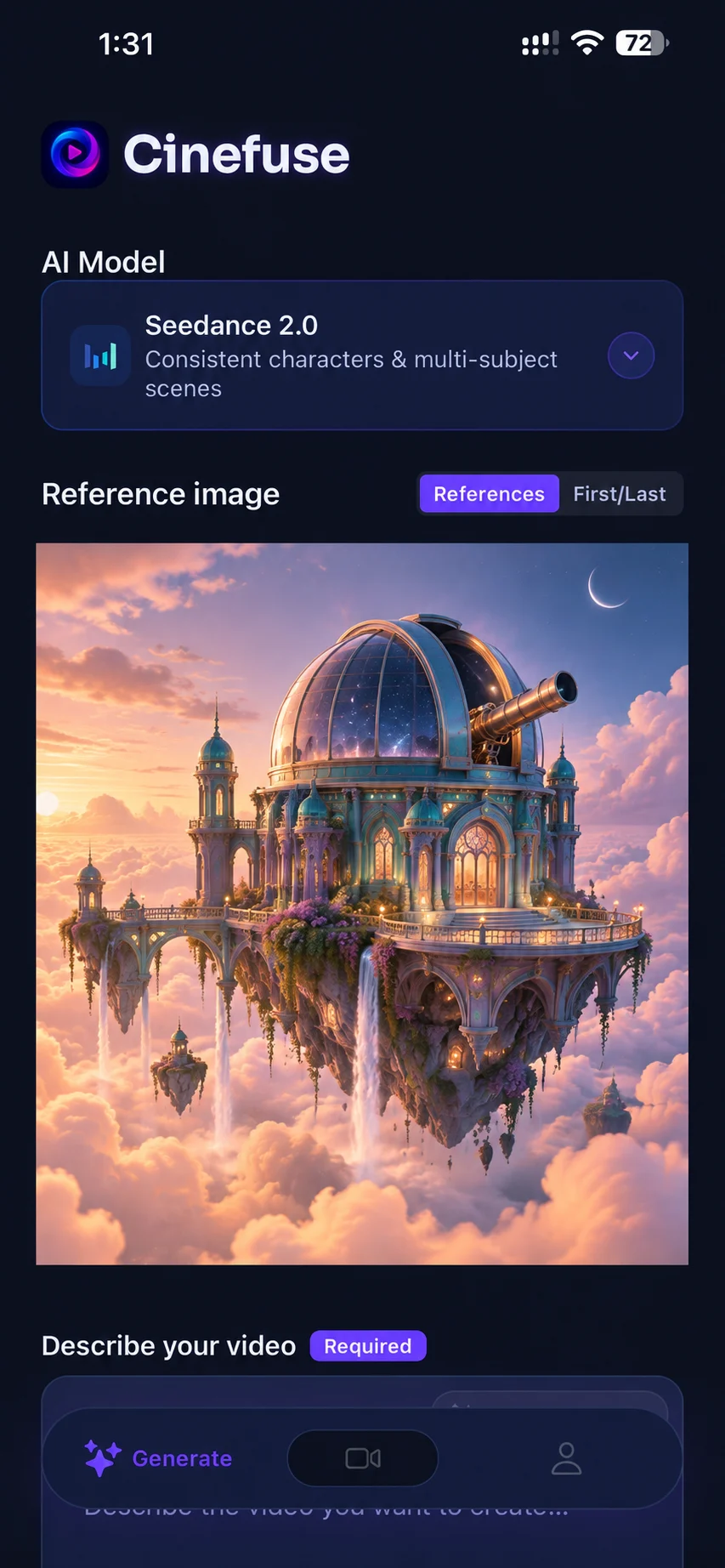
A concrete starting image
INSIDE CINEFUSE · IMAGE TO VIDEO
Match the motion to the subject.
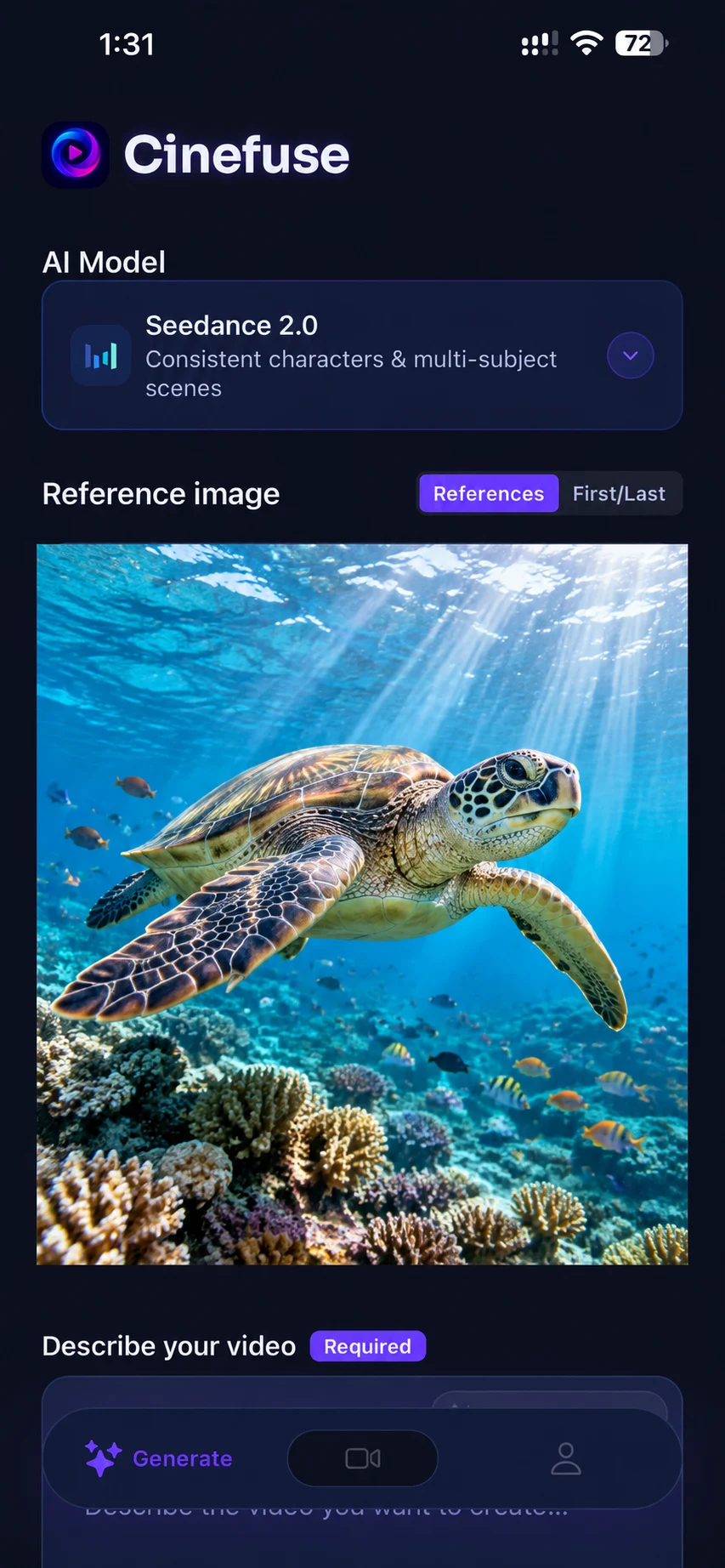
This illustrative marine scene suggests a natural direction for an image-to-video prompt: slow forward movement, steady framing, and gentle underwater light.
Suggested motion prompt:
Track slowly alongside the sea turtle as it glides above the reef with gentle flipper strokes. Keep its anatomy consistent as sunbeams ripple through the clear water.
Before you generate: Use a source image with the turtle fully visible and space around its flippers. Check the output format and credit cost in the app.
Review the result: Watch the flippers and shell for distortions. If the anatomy changes, reduce the subject movement and try a static camera with subtle water motion.
Illustrative app setup with an AI-generated reference image and a suggested prompt, not a recorded before-and-after result. AI motion can change source details.
How to Guide the Animation
When you upload an image to Cinefuse, the AI uses it as the first frame of your video. Your text prompt then tells the model what should happen next — how the camera moves, what the subject does, how the environment changes, and what style or mood to apply. The key is to be specific about motion. Vague prompts like "make it move" produce unpredictable results. Specific motion instructions produce intentional, controlled animation.
The Image-to-Video Prompt Formula
[What moves] + [How it moves] + [Camera behavior] + [Environmental change] + [Style/Mood]
You don't need all five elements every time, but combining motion subject, camera behavior, and style gives the most controlled results.
Prompt Ideas by Category
Portraits and People
Portraits are one of the most popular image-to-video use cases. The AI can animate facial expressions, hair movement, and subtle body language with impressive realism.
- Subtle Motion: "The subject blinks slowly, a gentle smile forms, hair moves softly in a light breeze, warm natural lighting."
- Dramatic Reveal: "Camera slowly pulls back to reveal the full scene, subject turns their head toward camera, cinematic lighting shift from shadow to light."
- Emotional Moment: "Subject looks down thoughtfully, then slowly raises their eyes to the camera, soft bokeh background, golden hour light."
Landscapes and Nature
Nature photos animate beautifully — clouds move, water flows, light shifts. Start with subtle movement, then compare the available models and settings in Cinefuse.
- Environmental Shift: "Transition from day to dusk, the sky gradually turns orange and pink, city lights begin to flicker on in the distance."
- Weather Change: "Light rain begins to fall, ripples appear on the water surface, mist rolls in from the left, moody and atmospheric."
- Aerial Motion: "Camera slowly drifts forward over the landscape, trees sway gently below, clouds move in time-lapse, epic and cinematic."
Product Photography
Animate product shots for e-commerce ads, social content, and brand videos. These prompts work well with Seedance 2.5 for premium feel, Grok Imagine for bold attention-grabbing results, HappyHorse 1.1 for product consistency, or Seedance 2.0 for energetic motion.
- Rotation Reveal: "Product slowly rotates 360 degrees on a clean white surface, soft studio lighting, subtle reflection below, premium and minimal."
- Dramatic Lighting: "A beam of light sweeps across the product from left to right, revealing its texture and detail, dark background, luxury feel."
- Lifestyle Context: "The product is picked up by a hand from the left, camera follows the motion, bright natural light, casual and authentic."
Digital Art and Illustrations
Illustrated characters, concept art, and graphic designs all animate with striking results. These prompts are great for artists and designers looking to bring their work to life.
- Character Animation: "The character blinks, their cape billows in the wind, they raise one hand slowly, dramatic fantasy lighting."
- Environment Comes Alive: "Leaves on the illustrated trees begin to rustle, a waterfall in the background starts flowing, magical particles drift upward."
- Abstract Motion: "The geometric shapes slowly rotate and shift, colors bleed into each other at the edges, hypnotic and fluid."
Tips for Better Image-to-Video Results
- Use high-contrast, well-lit images. The AI performs best when the subject is clearly defined against the background. Blurry or low-light photos produce less controlled results.
- Describe what should stay still. If you want the background static and only the subject to move, say so: "background remains static, only the subject's hair and clothing move."
- Reference the image content in your prompt. If your image shows a woman in a red dress, mention her: "the woman in the red dress turns slowly toward the camera." This anchors the AI to your specific image.
- Try multiple models on the same image. The same image + prompt can produce very different results across Grok Imagine, Seedance 2.0, HeyGen Video, HappyHorse 1.1, and Seedance 2.5. Generating with all five and picking the best is a common workflow.
Animate your camera roll instantly
Download Cinefuse to access Grok Imagine, Seedance 2.0, HeyGen Video, HappyHorse 1.1, and Seedance 2.5 for image-to-video on iPhone.

Free to download. Video generation requires a subscription.